01 · The look
Film feel,
built in.
Rich blacks, warm practical lights and cool dusk tones, shaped around your footage.
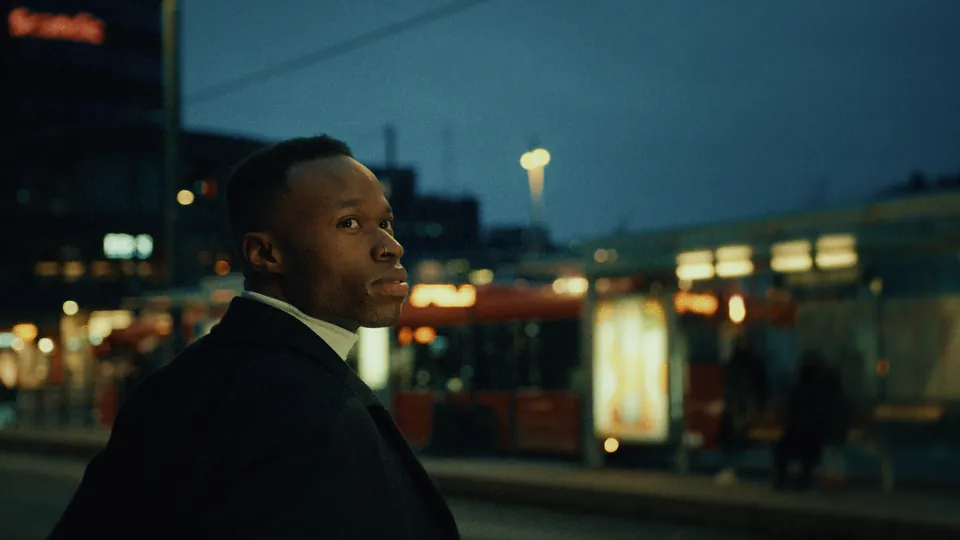
 Warm practicals
For filmmakers, editors and colorists
An editable, film-inspired PowerGrade for DaVinci Resolve Studio. Balance your shot, shape the look and make it your own.
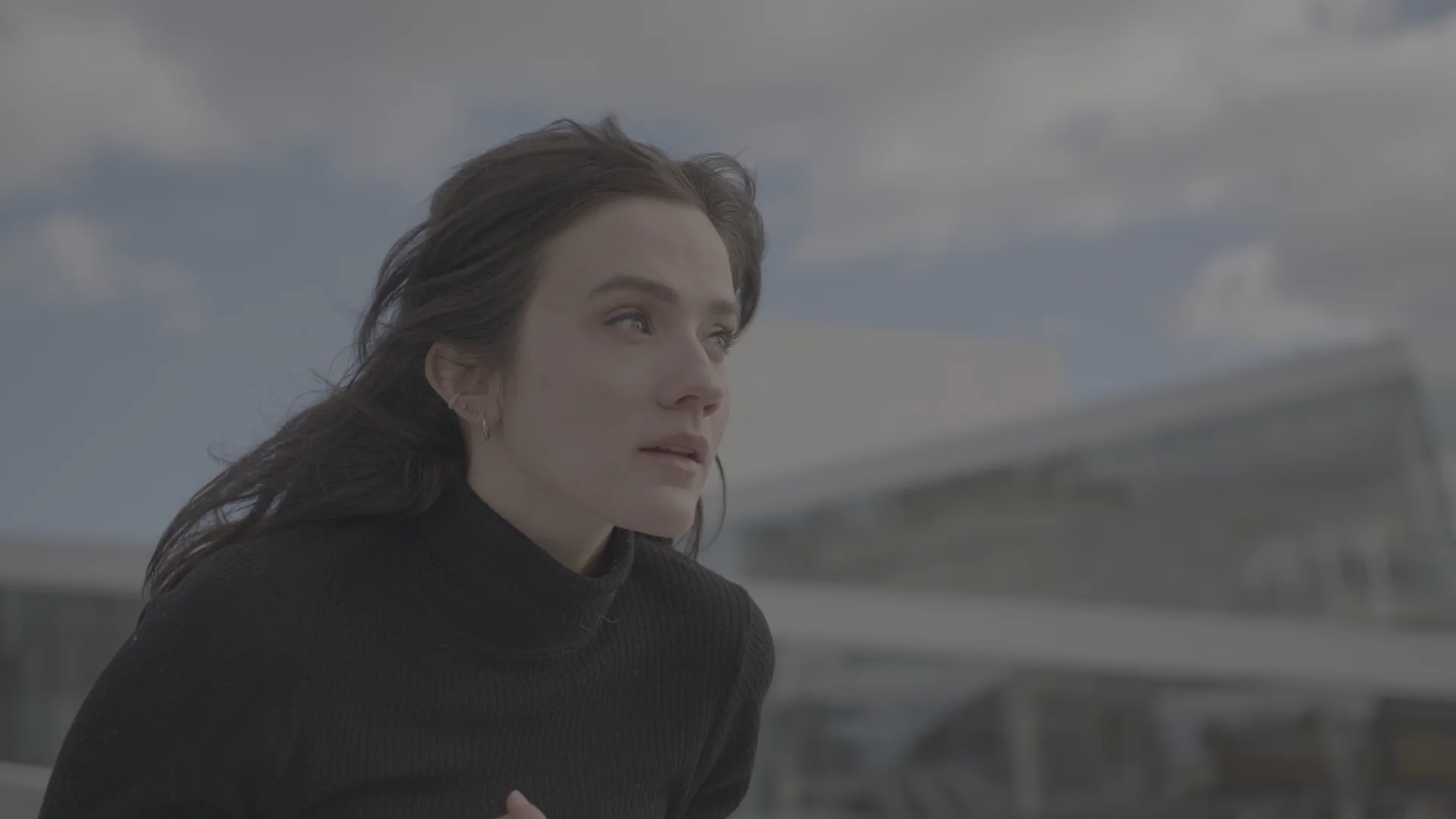
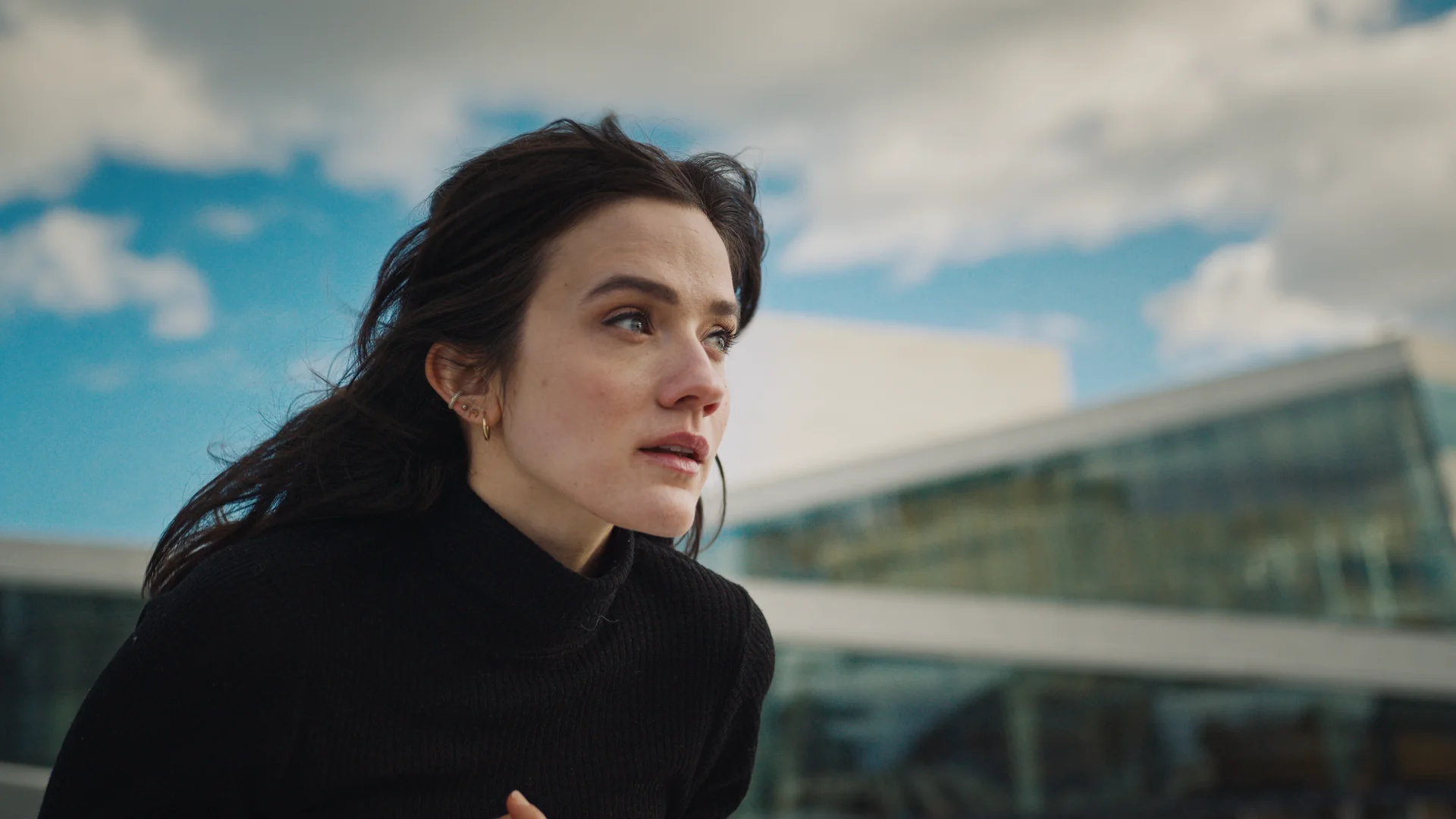
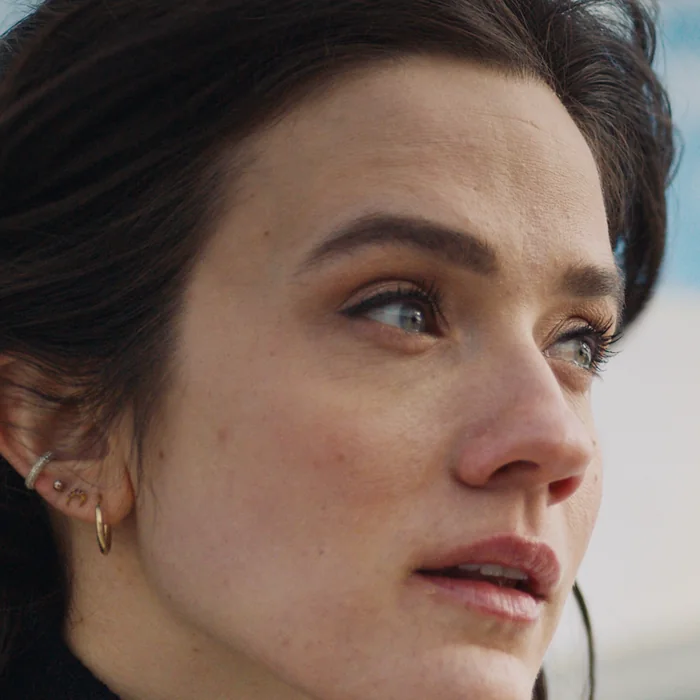
Same frame
Warm skin. Cool sky.
Before / after
Three shots graded with CHROMA. Each pair is one identical frame from Resolve. Open any pair to inspect it full size.
Each clip starts on the source, then wipes to the grade while the shot plays.
Results depend on your footage, lighting and camera profile. Every shot still needs its own balance.
How it works
01 · The look
Rich blacks, warm practical lights and cool dusk tones, shaped around your footage.
Warm practicals
02 · Balance
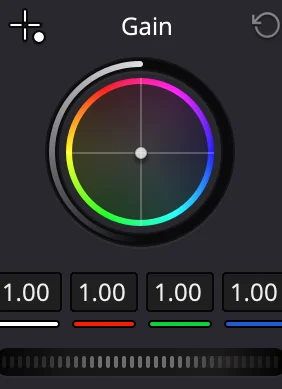
Set exposure and white balance on your shot first. The look sits on top.
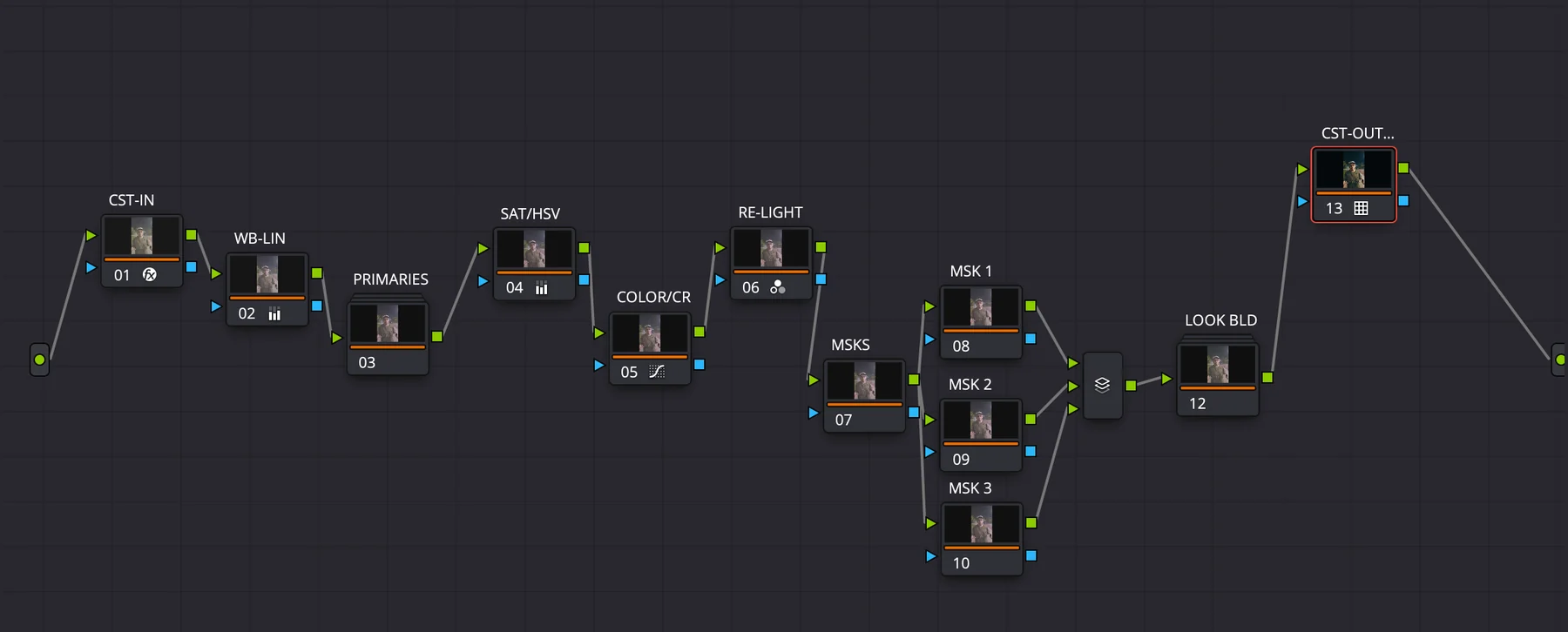
03 · The nodes
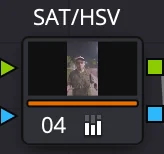
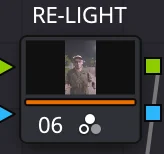
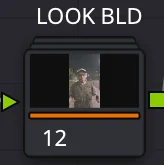
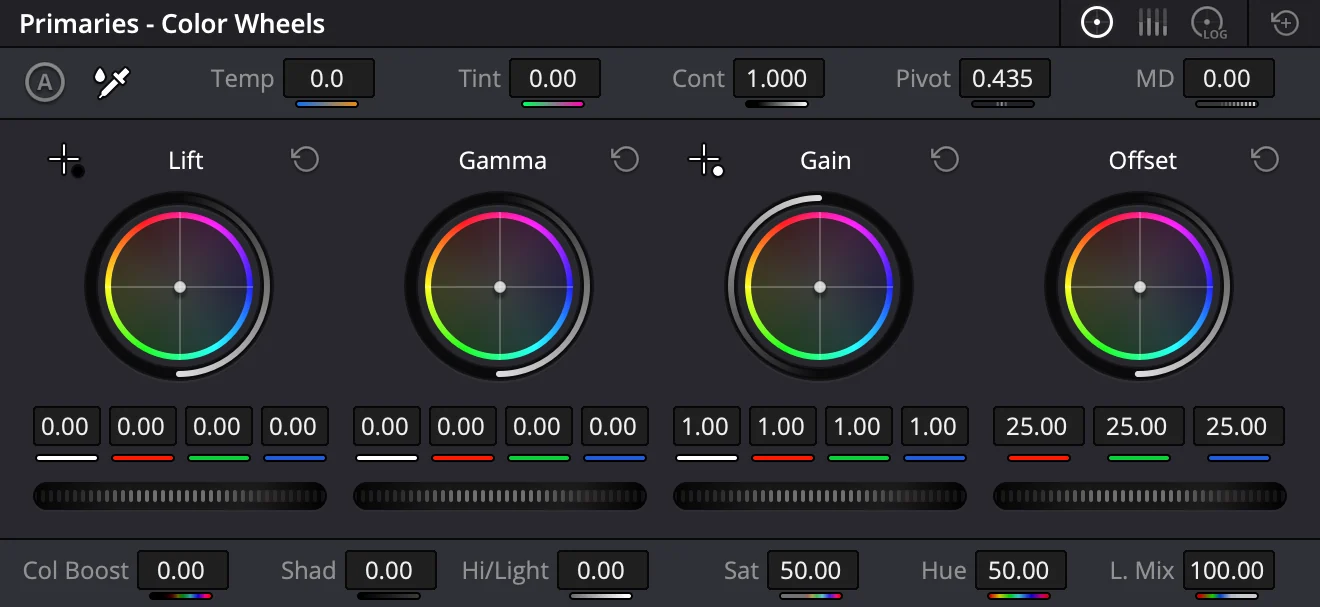
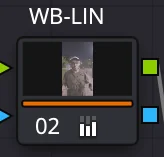
Input, balance, color, light, masks, look, output. Open any node and adjust it.
Explore the node tree04 · Getting started
Install the LUTs, import the PowerGrade, apply it from the Gallery.
Inside the node tree
Pick a stage to find it in the real CHROMA tree.
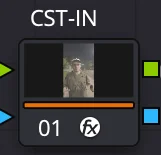
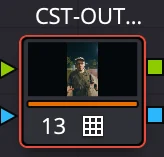
Stage 01 · CST-IN
Input transform
Set the starting color space for your footage.
Guide & workflow
Khalil’s full setup guide: install the LUTs, import and apply CHROMA, set the input transform, then balance the shot. Jump to any chapter.
Setup guide video
Being finalised
The full guide will play here and come with your download.
Original grading sessions and behind the scenes. Earlier recordings show different node layouts.
Reviews
Loading reviews…
What’s included
Four kinds of files. The look LUTs are included because CHROMA’s look stages use them.
The .drx node workflow. Balance your shot, then shape the look.
The Kodak-inspired look LUTs CHROMA’s look stages use.
Spot CHROMA instantly in your PowerGrade album.
Setup steps from download to your first adjusted shot.
Install
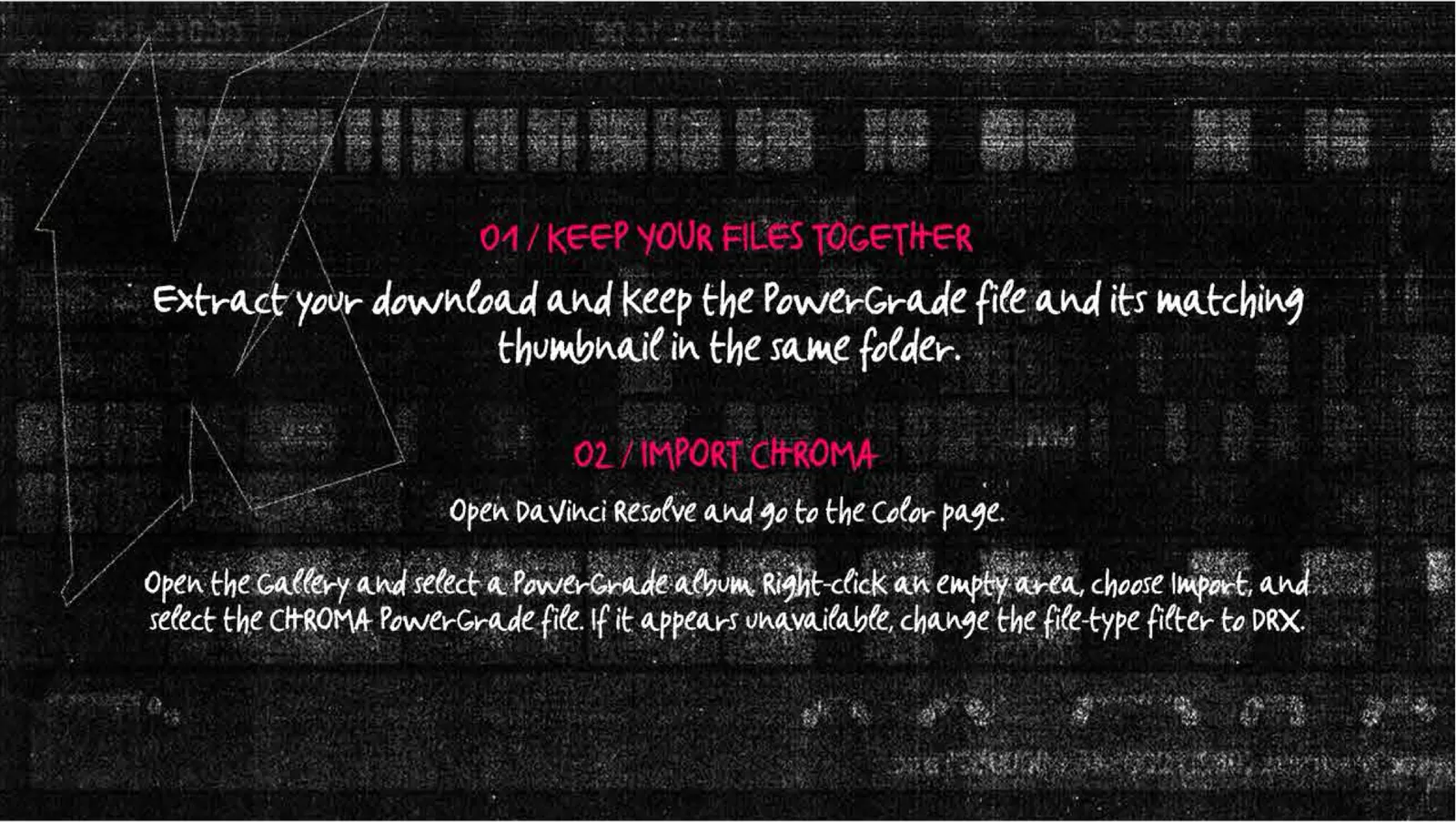
Extract the download, add the LUTs to Resolve’s LUT folder and refresh the LUT list.
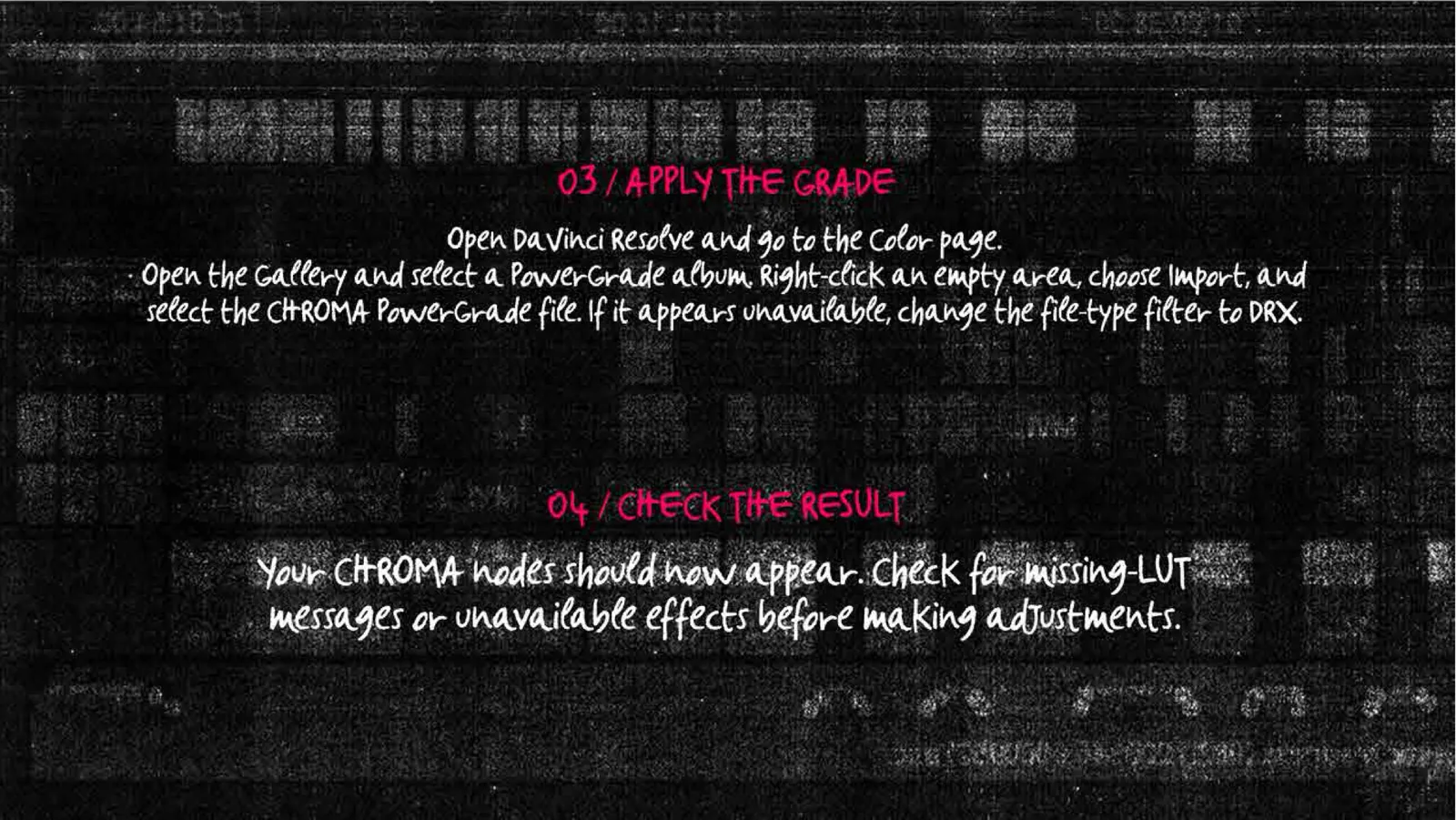
In the Color page Gallery, open a PowerGrade album and import the .drx with its thumbnail.
Select your clip and apply CHROMA from the Gallery.
Check for missing LUTs or effects, set the input transform, then balance exposure and white balance.
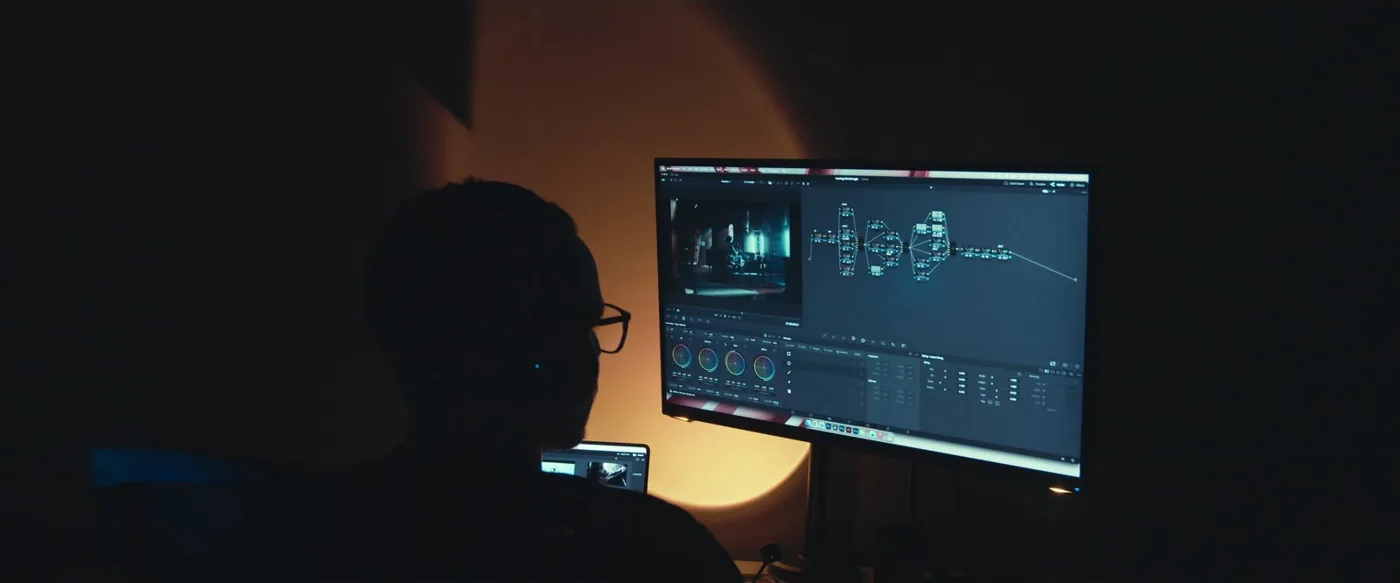
From the creator
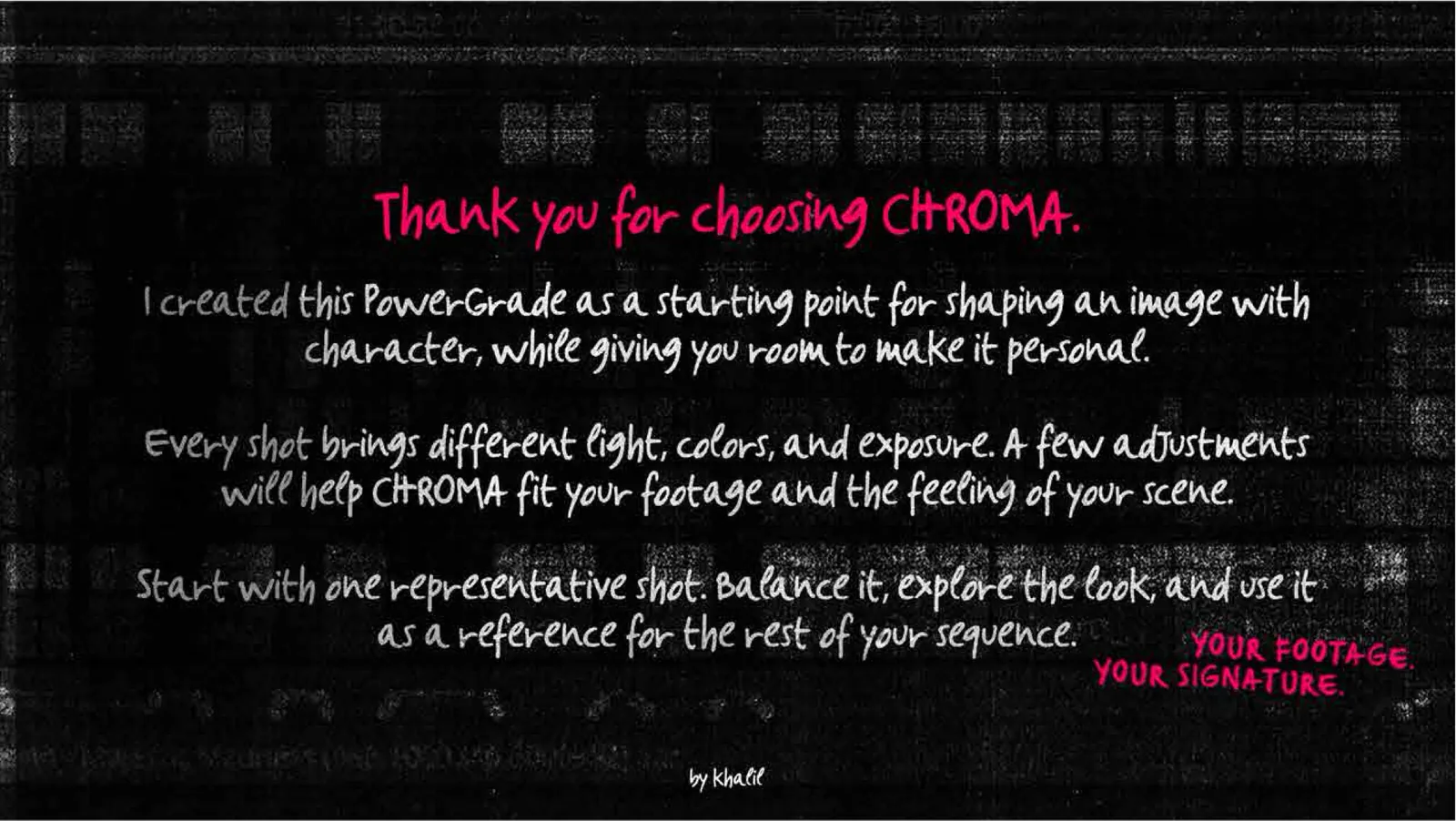
I created CHROMA as a starting point for shaping an image with character, while giving you room to make it personal. Every shot brings different light, color and exposure. Balance one representative shot, explore the look, and use it as a reference for the rest of your sequence.
— Khalil
One look, yours to shape
$20 USD · paid once
Checkout isn’t open yet, so CHROMA can’t be purchased on this page.
Need a detail about your setup?
Ask Khalil
CHROMA requires DaVinci Resolve Studio; the free edition is not supported. Install the included look LUTs before applying the grade. Tested versions will be listed before launch.
Set CHROMA’s input transform for your camera profile, then balance exposure and white balance. Lighting and source footage affect the result; every shot will need its own adjustments. Ask Khalil about a specific camera profile before buying.
Apply CHROMA, set the input transform, then balance exposure and white balance for the shot. From there you can keep the look as it is or adjust any named stage. Use one balanced shot as a reference for the rest of the scene.
The editable .drx PowerGrade, required look LUTs, matching Gallery thumbnail and installation guide. Delivery details will be confirmed when checkout opens.
Yes. Use CHROMA in personal films, edits and paid client projects. Do not share, resell or redistribute the PowerGrade or bundled files.
Email khalilwrld1@gmail.com with your purchase details, Resolve version and the issue. Khalil will help you troubleshoot.
Yes. If a faulty download or confirmed incompatibility cannot be resolved after troubleshooting, you will receive a full refund.
Yes. CHROMA separates image balance, color shaping, masks and look building into named node stages, so you can adapt it to each scene.
The price is $20 USD, paid once. Checkout isn’t open yet. The purchase buttons will connect to it once it is ready.